

The island is deliberately small, so every pixel means something. This is what each part is telling you.
Before you start
- Agent Island installed and at least one provider signed in
1. The three logo states
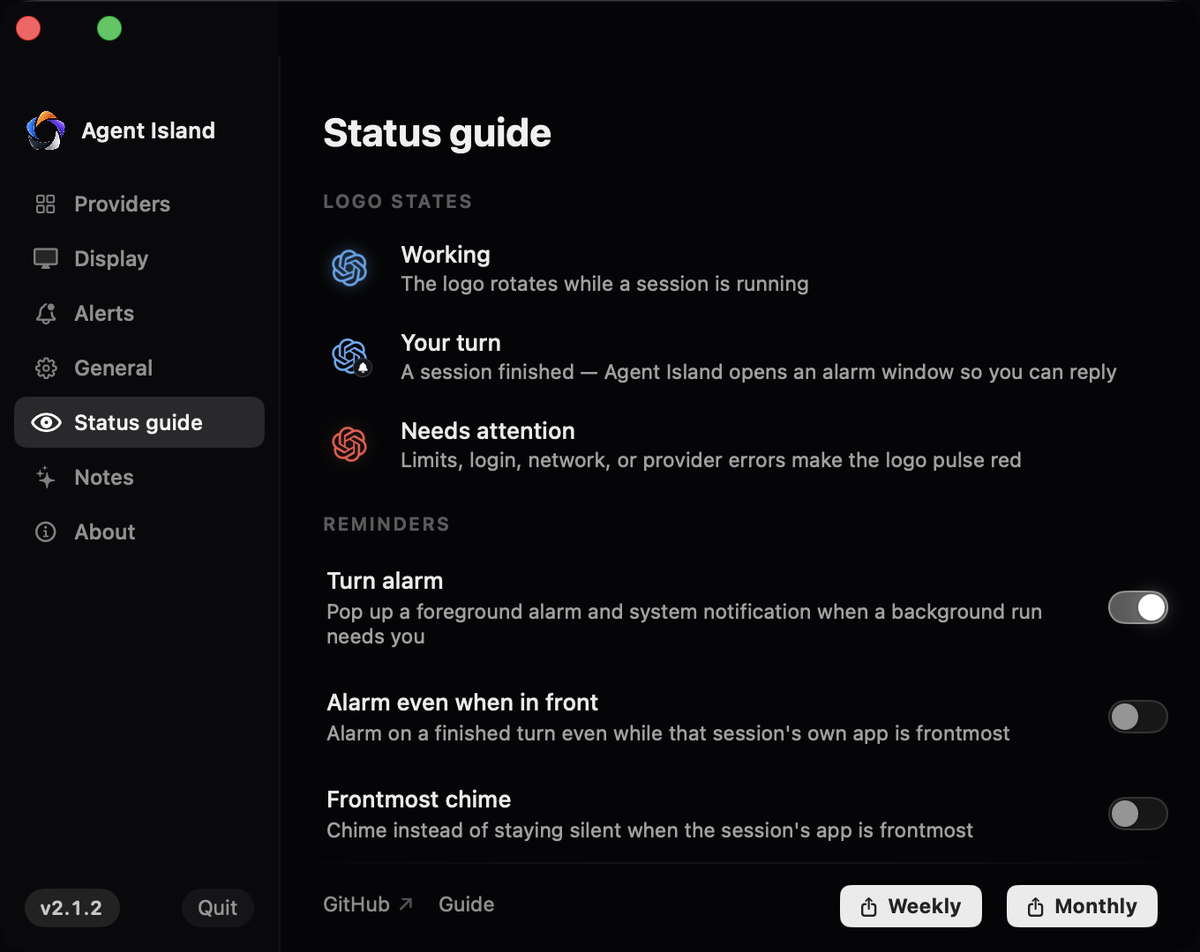
The provider logo in the island carries the state:
- Working — the logo rotates while a session is generating
- Your turn — a session finished and Agent Island opens an alarm window so you can reply
- Needs attention — limits, login, network or provider errors make the logo pulse red
2. The two compact slots
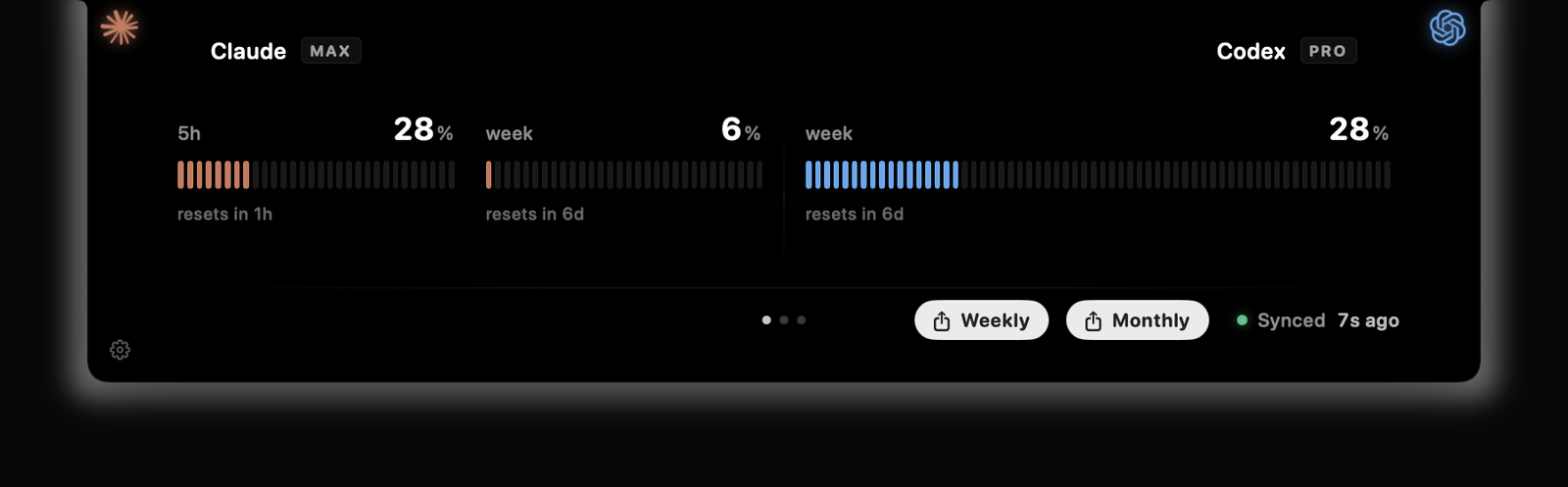
The compact island carries up to two providers at a time. Every other enabled provider still keeps a full row in the expanded panel — the slots are about your glance, not about coverage.
3. The numbers next to each logo
Each slot shows the used percentage of the current quota window and how long until it resets. Claude reports a five-hour window and a weekly window; Codex reports a weekly one.
4. Expand for the full picture
Click the island to expand it. Pages hold quota, cost, and the report buttons; swipe or use the wheel to move between them.
5. Check the sync age
The footer shows when usage last refreshed. Click it to refresh immediately. If credentials expired, the row switches to a re-auth prompt rather than showing stale numbers as if they were fresh.
If it does not work
A session that stopped producing output without a proper ending can leave the working state up. It expires on its own once the attention window passes.
That is the provider endpoint, not your session. Local session monitoring keeps working while a usage refresh fails.
You are signed in to one provider, or the second one is hidden in Settings → Providers.